GenomeProt Help Guide
Overview
GenomeProt is a comprehensive proteogenomic analysis tool used to identify:
- Canonical proteins
- Noncanonical proteins (uORFs, dORFs, noncoding RNA–derived proteins)
- Variant peptides and proteoforms
Citing GenomeProt
If you use GenomeProt, please cite:
H. Kore et al., GenomeProt: User friendly proteogenomics for canonical and non-canonical proteoform characterisation. To be published. Accessed: Sep. 5, 2026. [Online]. Available: https://doi.org/10.64898/2026.08.06.743133
The GenomeProt workflow
The workflow consists of four steps:
Quick start: Try using GenomeProt with the test data
Step 1: Download the test data
Click here to go to the test data directory of the GenomeProt GitHub repository. Next, download all five files in the directory and decompress them. You should now have:
- A reference genome FASTA file (
GRCh38_chr1_6_7_masked.fa) - A BAM file (
long_read_bam/Melanoma_data_subset.bam) - A reference transcriptome GTF file (
gencode_v47_sorted.gtf) - A VCF file (
BRAF_mutation.vcf) - A reformatted proteomics results TSV file (
peptide_data.tsv)
Step 2: Run the test data through GenomeProt
Each step of the GenomeProt workflow is described below. Steps 1 (database generation) and 3 (integrate data) contain instructions on how to use them with test data, while Step 4 (visualise results) has general usage instructions that can be followed where appropriate.
1. Database Generation
Users can choose between short-read and long-read options depending on their data type.
The public GenomeProt server supports database generation using:
- Pre-aligned BAM files
- GTF file of assembled transcripts from the dataset
Users can also generate a variant-aware proteome database using an optional multisample VCF file generated from variant calls derived from the same samples.
Steps to generate a database using the test data
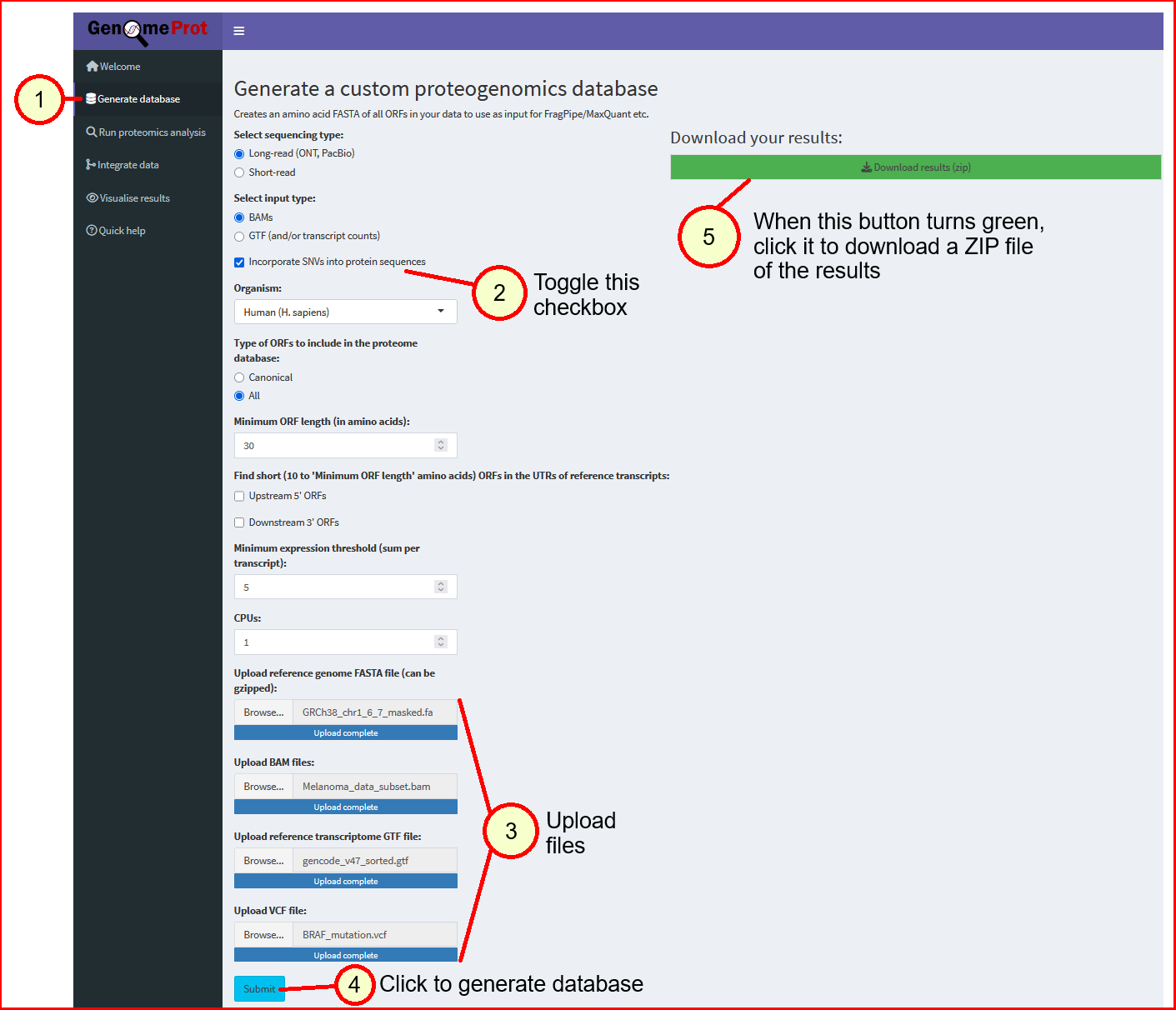
- Navigate to the 'Generate database' tab.
- Toggle the checkbox 'Incorporate SNVs into protein sequences'.
-
Unzip and select the corresponding files in the test data directory of the GenomeProt GitHub repository to upload:
- The reference genome FASTA file (
GRCh38_chr1_6_7_masked.fa) - The BAM file (
long_read_bam/Melanoma_data_subset.bam) - The reference transcriptome GTF file (
gencode_v47_sorted.gtf) - The VCF file (
BRAF_mutation.vcf)
- The reference genome FASTA file (
- Click 'Submit'. The server will then take roughly 1-2 minutes to process the uploaded files.
- Once the server has finished processing the files, the 'Download results (zip)' button will be enabled and turn green. Click on it to download a ZIP of the output files.
Output files:
proteome_database.fasta: Multi-FASTA protein databaseproteome_database_metadata.txt: TSV file containing annotations for candidate protein sequencesproteome_database_transcripts.gtf: GTF file with transcript coordinates used to generate the proteome database
The expected contents of the test data ZIP output file can be downloaded here.
Note: To generate a database directly from BAM files larger than 20 GB, install GenomeProt locally and run its command-line R and Python scripts instead. To generate a database from FASTQ files, install and run GenomeProt locally.
2. Analyse MS Proteomics
This module is not present in the public GenomeProt server. Users interested in performing proteomics searches through GenomeProt should install and use GenomeProt locally.
3. Integrate Data
This step maps peptides identified in the proteomics search to spliced transcript coordinates.
- Files required from Step 1:
proteome_database_metadata.txtandproteome_database_transcripts.gtf - Files required from the proteomics search (Step 2):
peptide.tsv(discovered peptides) ORreport.pr_matrix.tsv(quantified peptides)
Steps to map peptides
This module consists of two parts: Reformatting proteomics results files and performing proteogenomics integration.
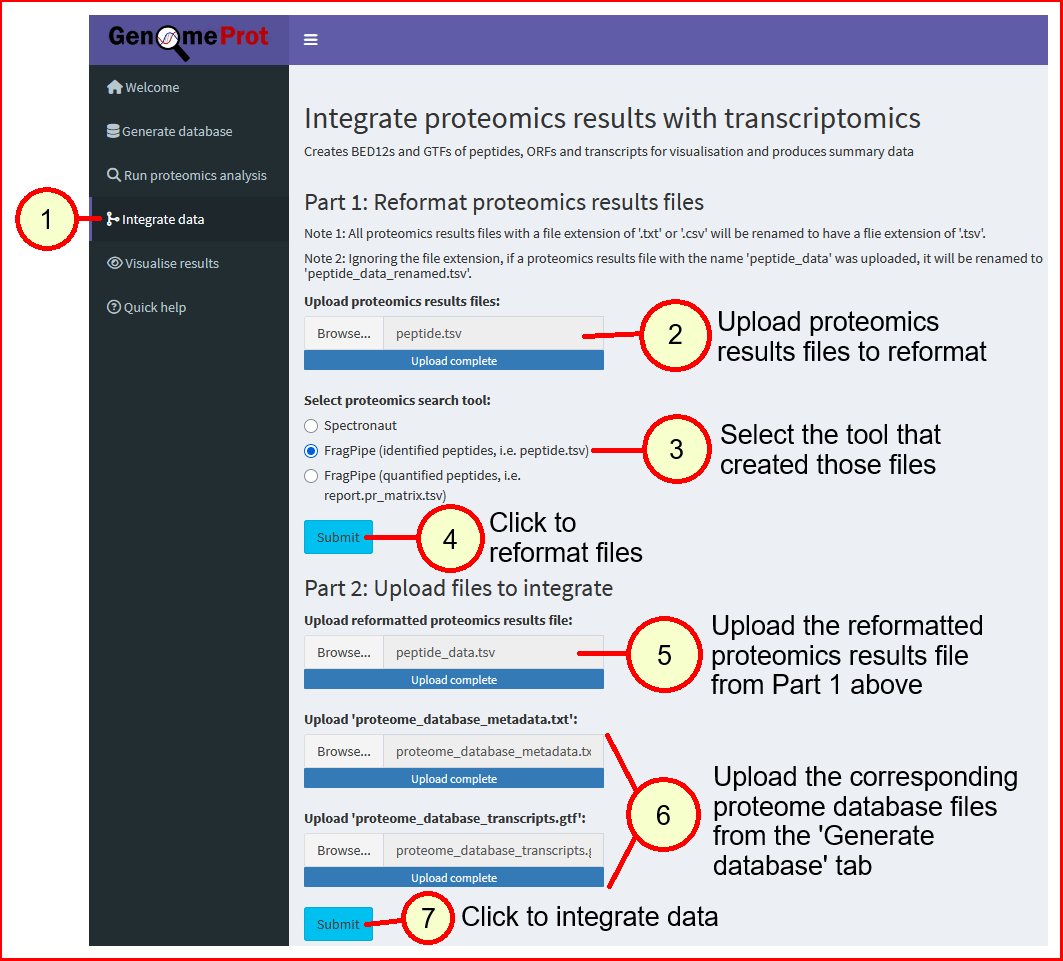
Under 'Part 1: Reformat proteomics results files', upload the proteomics results files you have obtained from the proteomics search tool you used, then select that tool from the list provided and click 'Submit'.
Once the server has finished processing the provided files, it will create a single reformatted peptide results file (peptide_data.tsv).
Click on the enabled and green 'Download reformatted results file (peptide_data.tsv)' button to download the reformatted file.
Afterwards, under 'Part 2: Upload files to integrate', upload the reformatted peptide results file from Part 1 and the proteome database metadata file (proteome_database_metadata.txt) and transcript annotation GTF file (proteome_database_transcripts.gtf) from Step 1, then click 'Submit'.
When data integration is complete, the 'Download results (zip)' button will be enabled and turn green. Click on it to download a zip file containing an HTML integration summary report and visualisation files.
Performing proteogenomics integration with test data
- Download the output ZIP file from Step 1 and unzip it.
- Navigate to the 'Integrate data' tab.
-
Under 'Part 2: Upload files to integrate', select the corresponding files to upload:
- The reformatted proteomics results file (
peptide_data.tsv; unzip and select the file here). - The
proteome_database_metadata.txtfile from the Step 1 ZIP file - The
proteome_database_transcripts.gtffile from the Step 1 ZIP file
- The reformatted proteomics results file (
- Click 'Submit'. The server will then take a few minutes to process the uploaded files.
- Once the server has finished processing the files, the 'Download results (zip)' button will be enabled and turn green. Click on it to download a ZIP of the output files.
Output directory contents:
summary_report.html: Summary report of mapped peptides, transcripts, and ORFsreport_images/: Folder containing PDF versions of graphs from the summary reportpeptide_info.tsv: Detailed peptide mapping annotationscombined_annotations.gtf: GTF file with mapped peptides, ORF annotations and transcript coordinates for visualisation in IsoVispeptides.bed12: BED12 file with mapped peptide coordinates for visualisation in the UCSC Genome Browsertranscripts.bed12: BED12 file with transcripts supported by peptide evidence for visualisation in the UCSC Genome BrowserORFs.bed12: BED12 file with ORFs supported by peptide evidence for visualisation in the UCSC Genome Browser
The expected contents of the test data ZIP output file can be downloaded here.
4. Visualise Results
This step visualises peptides on transcript and gene coordinates using IsoVis.
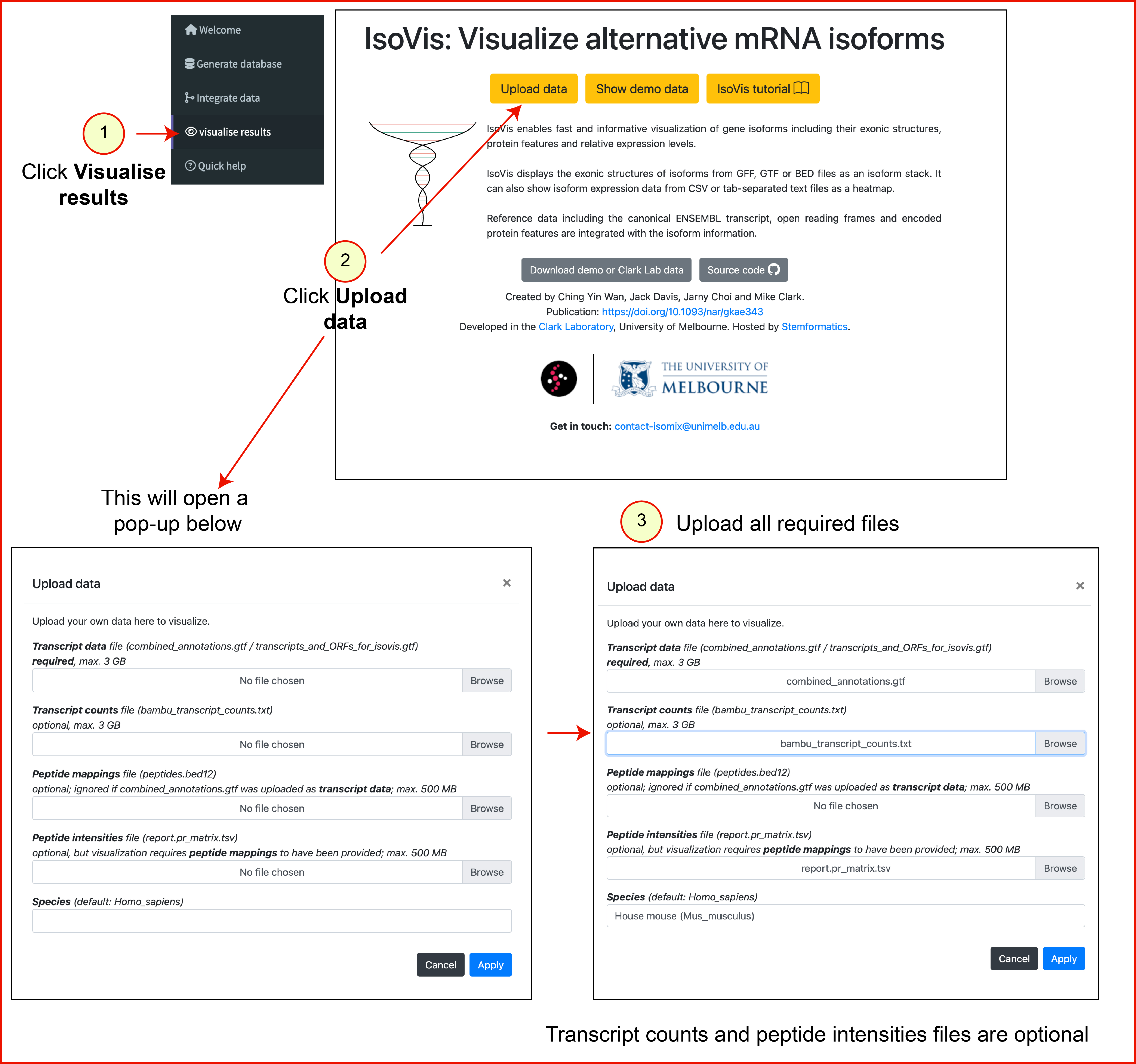
- Click 'Upload data' and select
combined_annotations.gtfas the 'transcript data' file (max. 3 GB). - Optional: select raw transcript counts as the 'transcript counts' file.
- Optional: select the peptide intensities file from MS analysis (Step 2) as the 'peptide intensities' file. Note that this is NOT the reformatted file from Step 3.
- Click 'Apply'.
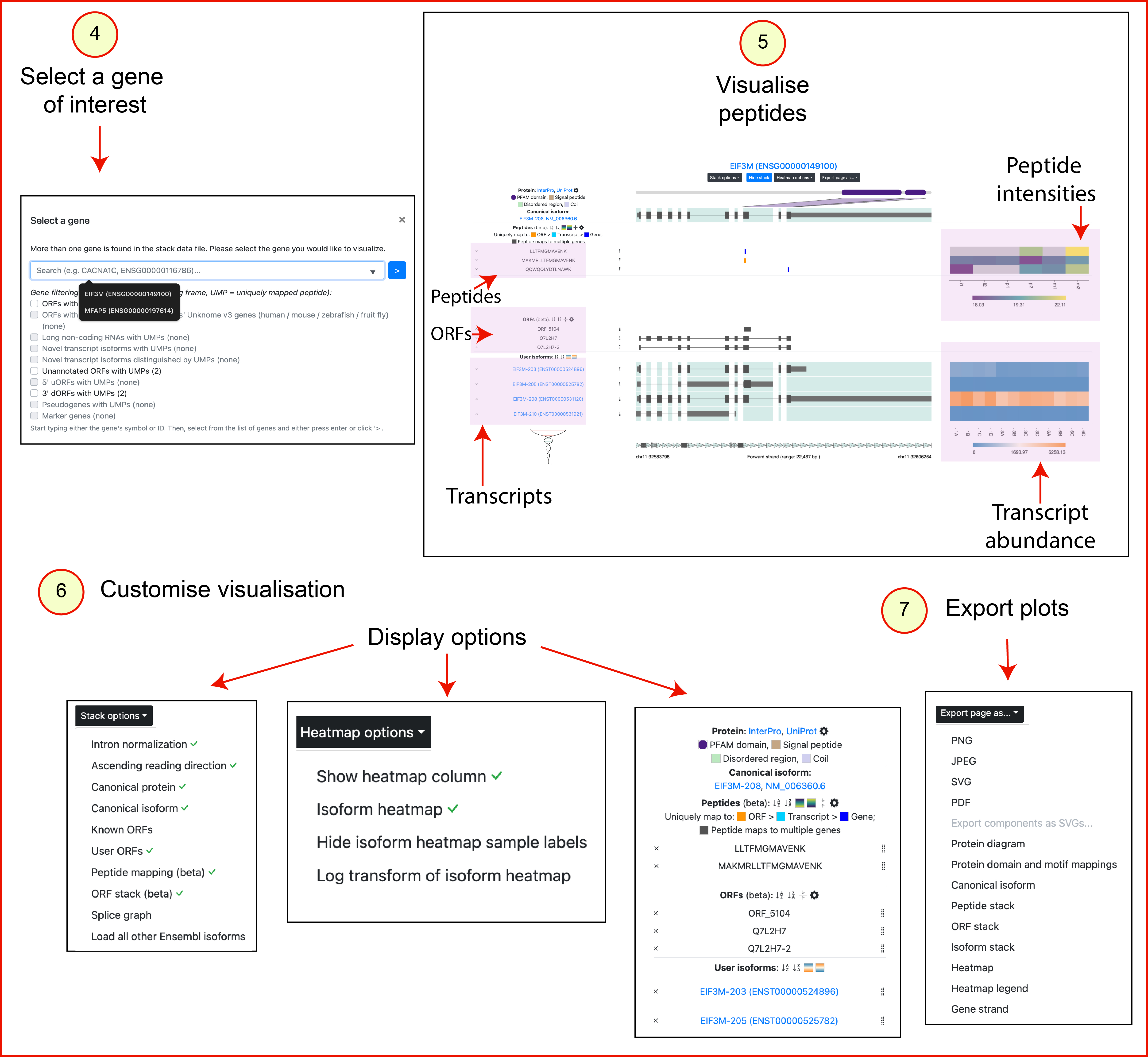
- Select your gene of interest. Start typing either its gene name or Ensembl ID into the search box, select it from the list of results displayed, then either press enter or click '>'.
- Use the different visualisation options provided in IsoVis. For example, parts of the visualisation can be toggled, including protein domain labels in the protein diagram.
- The entire visualisation can be exported as a PNG, JPEG, PDF or SVG, and individual visualisation components can be exported as SVGs.
Visualisation output:
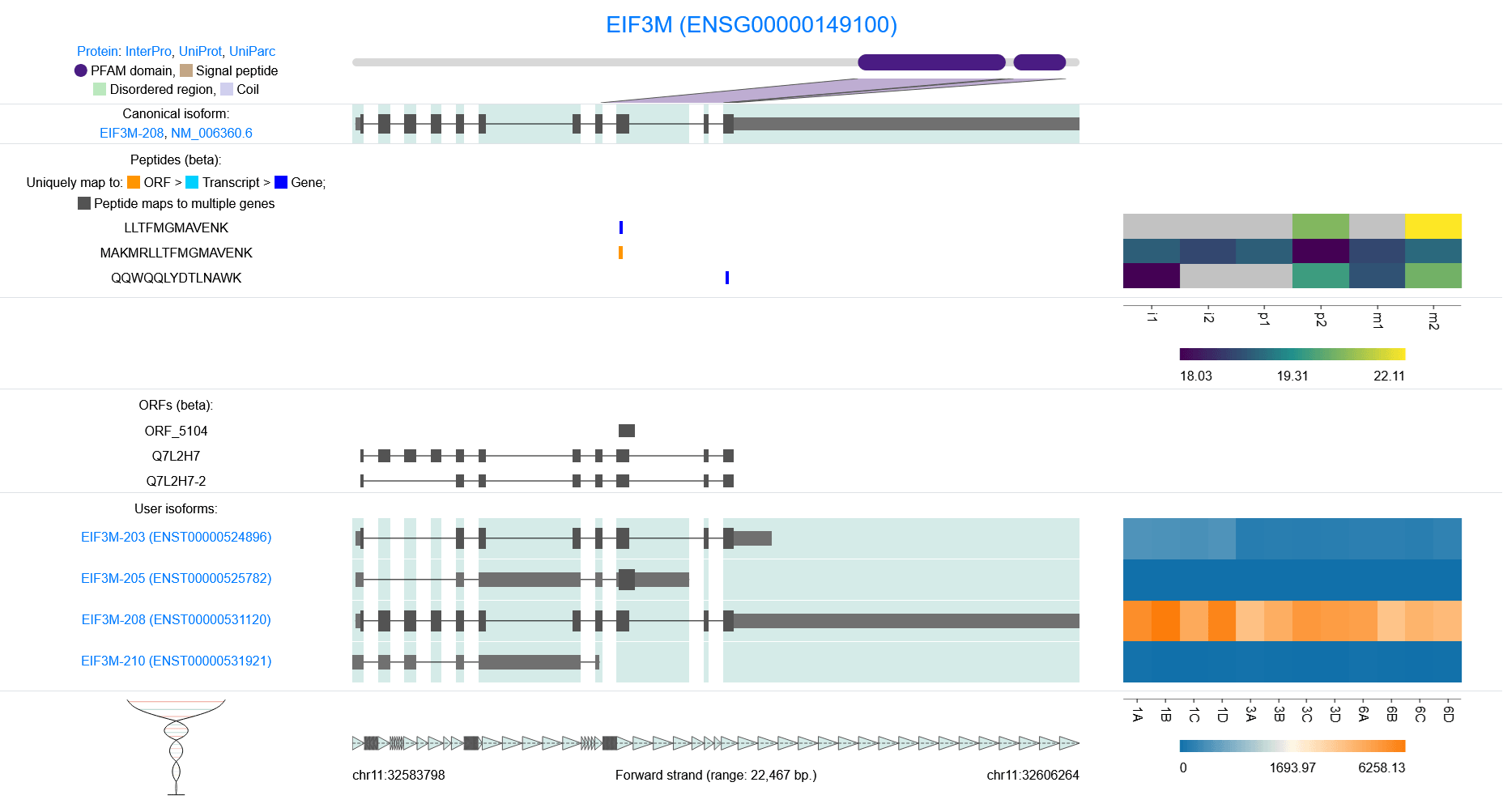
The IsoVis visualisation displays separate tracks for peptides, ORFs and transcripts.
Users can limit their analysis to specific peptides, ORFs or transcripts of interest
by hiding irrelevant parts of the visualisation and
using the peptide and ORF stacks to highlight specific features.
Overlapping ORFs are shown using a hatching pattern. Coding regions are represented
as thick dark grey boxes. Peptides uniquely mapped to ORFs, transcripts, and genes
are indicated in orange, cyan, and blue, respectively. Multi-mapping peptides are dark grey.
Below is an example exported PNG image from IsoVis:
For additional IsoVis details, refer to the documentation here.